A walk round the desktop
In the order you would meet it: the ring first, then the panel along the bottom, then the places where things are set. Real pictures where there are some, and drawings in the same style where there are not yet.
The ring
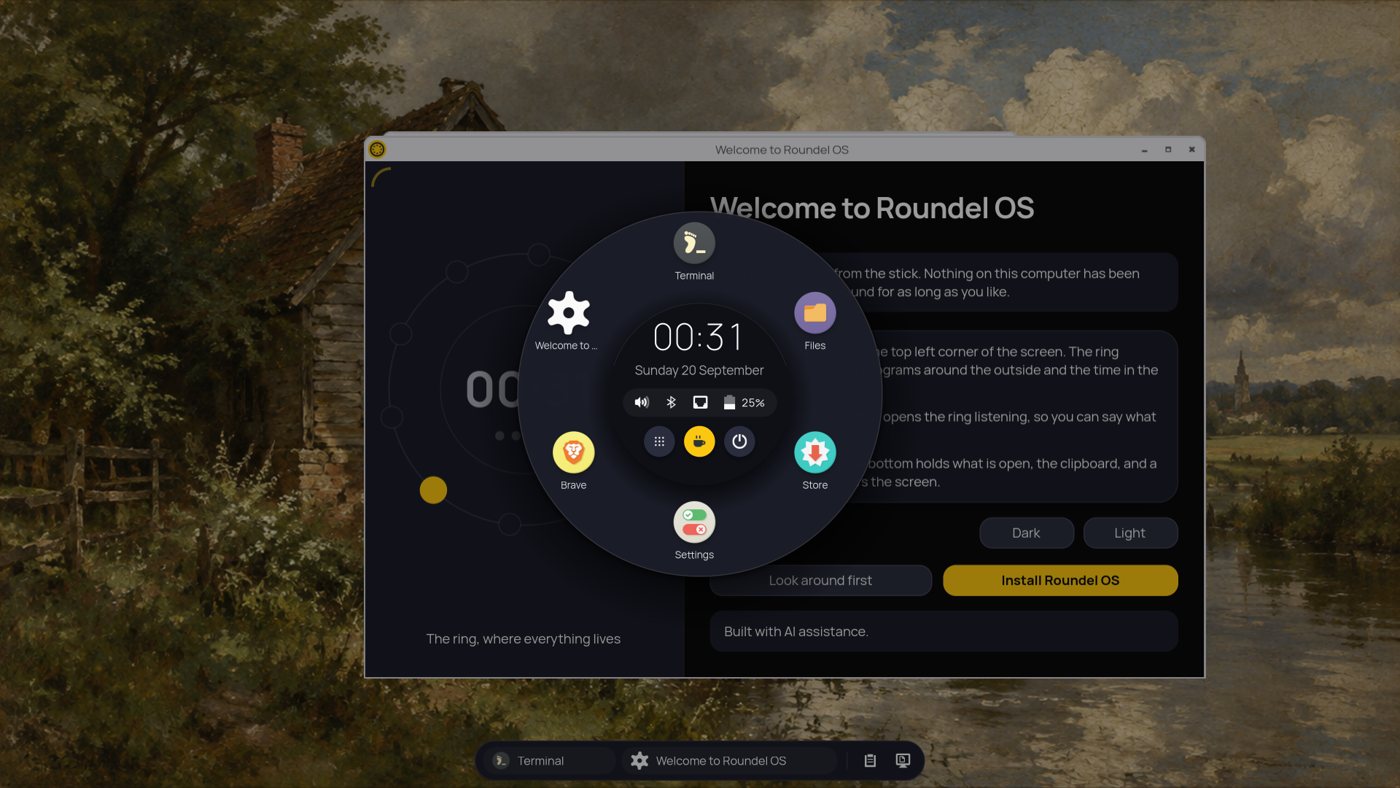
Push the pointer right into the top-left corner of the screen and the ring appears. Clicking the empty desktop opens it too, and so does the Super key. Escape, or a click outside the circle, closes it.
The middle
The time and date, and small icons for sound, Bluetooth, network and battery. Click any of them for its settings. Below sit two round switches: All apps, and the cup that keeps the screen awake until you click it again.
Round the middle
Up to twelve favourites, with Settings, the Store and Files always among them, plus any app with a window open. Click one to start it, or to bring its window to the front. Drag one onto another's place to reorder them.
Try the ring
A small piece of the real thing, running in this page.
The ring is shut. Open it from the corner.
Click the corner to open it. Hover or tab to an icon for its name, drag an icon round the circle to move it, or use the arrow keys, holding Shift to carry an icon with you. Escape shuts the ring.
Mouse-first, not keyboard-first
Everything here is meant for a hand on a mouse or a trackball. The corner opens the ring, the ring holds the apps, the clock and the tray, and a quick panel opens in the same circle rather than in a window somewhere else. Nothing is more than a short move away and nothing has to be typed to get at it.
It runs the other way from the keyboard-driven desktops that are in fashion, where speed comes from learning a list of key combinations first. Roundel asks you to remember nothing at all. The shortcuts on this page are there for people who enjoy them, and each one is only a faster route to something the pointer already does.
All apps
Click All apps in the middle and every app that is not already a favourite appears round the outside, cut into pieces by kind: Internet, Office, Graphics, Sound and video, Games and so on. A kind with nothing left in it has no piece. Click All apps again to put them away.
Keeping the screen awake
Reading, or watching something without touching the mouse? Click the cup. Until you click it again or log out, the screen does not dim, lock, turn off or sleep. The same switch is at the top of Settings, Power.
Voice control
An optional extra of about 150 MB, added from Settings, Ring. Hold the middle of the ring, speak, and let go: an app's name, "switch to", "close window", "louder", "quieter", "screenshot", "install" and an app's name. It is understood on this computer and nothing leaves it.
Quick panels
Click a tray icon in the middle of the ring and a round panel opens over the favourites, in the same circle rather than in a window somewhere else. The gear in it opens the full Settings page; the cross closes it.
Sound
Volume, the microphone, and which speakers or headphones are in use. Scrolling over the sound icon changes the volume without opening anything.
Wi-Fi
The networks in range, and Connect. A network you have joined before connects by itself.
Bluetooth
Search, then Pair beside your headphones, mouse or keyboard when it appears.
Battery
How long it will last, and how worn it is. A warning appears once when it runs down to the level you chose.
What the panel does
A slim panel along the bottom
The one thing that is not in the circle. It holds your open windows and two buttons at the end, and it is set on the same Settings page as the ring.
The clipboard remembers
The clipboard button at the end of the panel shows what you copied lately, newest first. Type in the filter to find one.
- Click a line to put it back on the clipboard. It only goes on the clipboard: you paste it yourself, where you mean it to go, so nothing lands in a box you did not choose.
- Pin the lines you want kept for good; they stay at the top.
- The small cross beside a line forgets just that one, which is what you want for a password copied by mistake.
- The bin forgets everything except the pinned lines.
When the rest is forgotten
Settings, Ring, Clipboard chooses one of these. Pinned lines are kept whichever you pick.
Only ever back on the clipboard
Choosing a line puts it back on the clipboard and nothing more. You paste it yourself, where you mean it to go, so nothing lands in a box you did not choose. A password copied by mistake is one cross away from being forgotten.
Settings
One window, a list of pages down the side. Super and I opens it, and so does its place in the ring.
The screen and the machine
- Displays, and the size everything is drawn at
- Sound, with a test chime and a level bar
- Network and Bluetooth
- Power: modes, dimming, locking and sleep
- Disks: space, ejecting, wiping a USB stick
- Network printers, found without any help
How it looks and behaves
- A built-in wallpaper switcher: one picture, a folder that changes, or a plain colour you type as a hex code
- Appearance: light or dark, highlight colour, icons, font, pointer size
- Ring: the corners, the panel, workspaces, clipboard, voice
- Sounds for logging in, the charger and the battery
- Keyboard layouts, region, date and time
- Which app opens what, and what starts at login
People and safety
- Users, passwords and the picture at the login screen
- Snapshots: take one, restore one
- About this computer: version, processor, memory, graphics, name
- Thanks: the projects Roundel OS is built on
- Help: the same plain wording as this site, offline
A new Settings page is one file in the source plus one line in a list, which is why there are as many as there are. Everything on them is written in the same plain words as this site: no jargon, and no setting whose name only makes sense if you already knew what it did.
Where apps come from
The Store stays out of the way
Roundel OS does not choose your apps for you. There is no browser and no office suite waiting for you: a welcome screen at first login offers a page of common apps from Flathub, and you tick the ones you want.
Later, open the Store from the ring. Updates are listed under Updates. To remove an app, press the bin twice, or right-click it in the ring and choose Uninstall.
Light, dark and sound
Two small things that decide how a desktop feels to sit in front of all day.
Light or dark
Dark to start with. In Settings, Appearance, choose Light when the screen is hard to see in bright sunshine, and Dark again later. Everything changes at once; apps from the Store change the next time they open.
The highlight colour is used for buttons, switches and wherever you are. Pick one of the colours offered or type your own. The same page changes the icons, the font and the size of the pointer.
Sounds
Each moment has its own sound: logging in; logging out, restarting and shutting down; the charger going in; the charger coming out; and the battery running low. Choose another from the list and it plays so you can hear it, or choose Off to keep that moment quiet.
Plugging the charger in or pulling it out also shows a card for a few seconds, so a lead that has slipped out gets noticed.
Keys, if you want them
Everything can be done with the mouse. These are only quicker ways. Super is the key with the Windows sign on most keyboards.
Next: what happens when something goes wrong
Snapshots before and after every software change, a backup you can carry to another computer, and a disk nobody can read if the laptop is taken.