Putting it on a computer
Write the image to a USB stick, start the computer from it, and try Roundel OS before you change anything on the disk. When you are ready, the Roundel Installer asks four things and does the rest.
Roundel OS is in beta. Try it from the stick for as long as you like, and think twice before making it the only system on a computer you depend on. Installing replaces everything on the disk you choose, or makes an existing partition smaller to make room beside it, and that cannot always be undone.
What you need
From the image to a running desktop
Five steps. Nothing on the computer changes until the last one.
- Download the image.It is a single .iso file, published on the Roundel OS releases page on GitHub.
- Write it to a USB stick.With Impression, balenaEtcher or dd, below. Everything already on the stick is replaced.
- Start the computer from the stick.Plug it in, switch on and hold the key for the boot menu: F12 on most Lenovo and Dell machines, F9 on HP, Escape or F11 elsewhere. On a computer with Secure Boot on, you may need to turn it off in the firmware settings first.
- Try Roundel OS.It runs from the stick, with the ring, the Store and Settings all working. Nothing is written to the computer's own disk. Open the ring, look round, and decide.
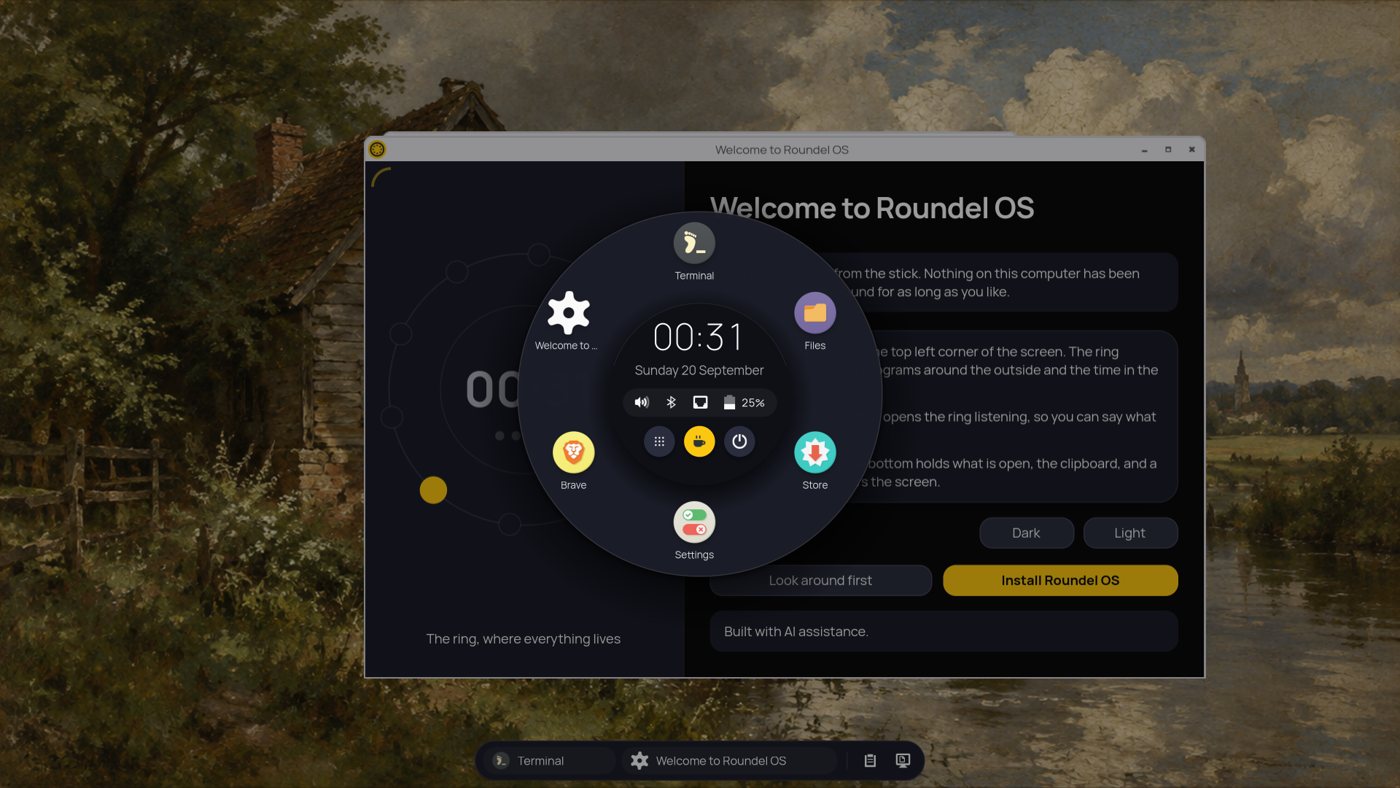
- Press Install Roundel OS.It sits among the apps in the ring. This is the Roundel Installer, and it still changes nothing until you press Install on its last page.
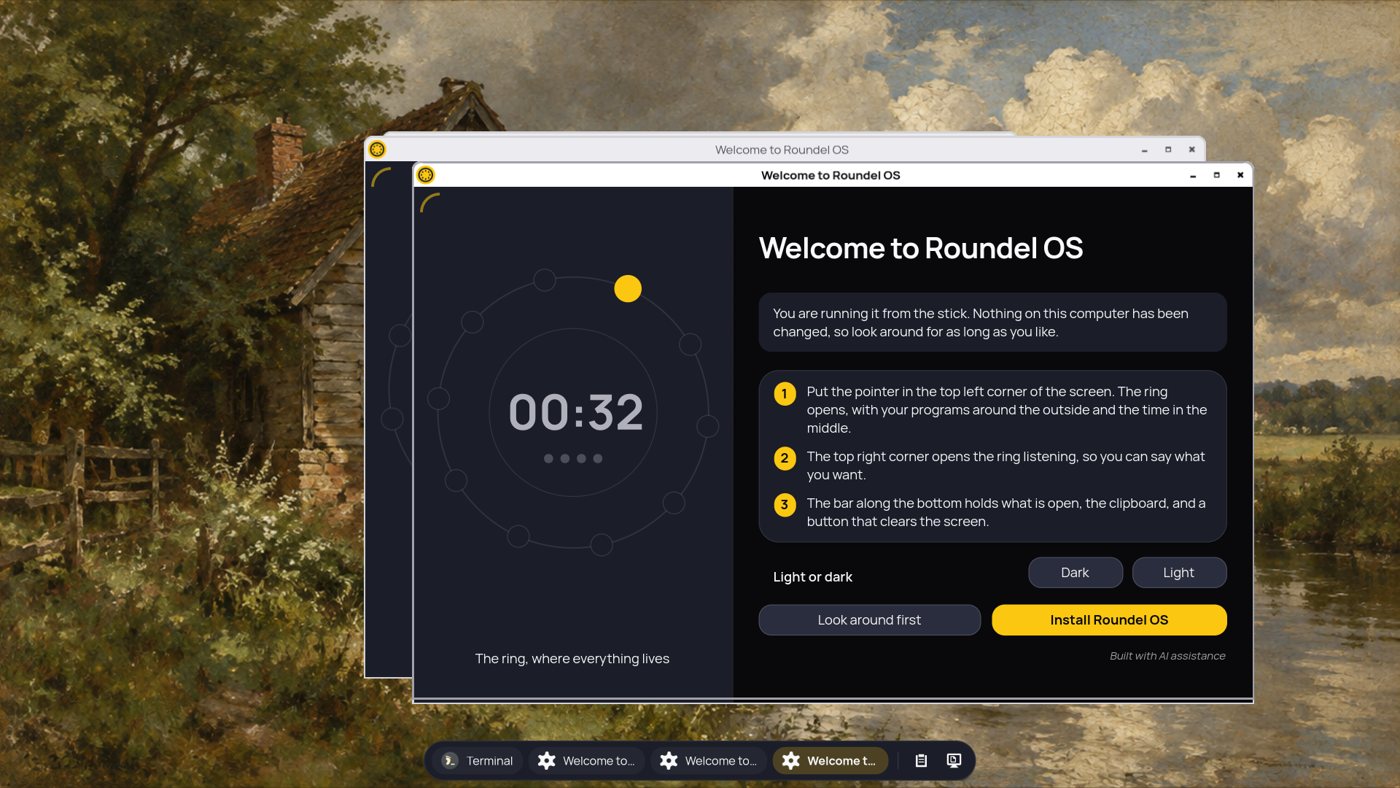
The welcome window, running from the stick. Nothing on the computer has changed yet.
Impression
On Linux, the simplest of the three, from Flathub. Choose the .iso file, choose the USB stick, press Write and type your password when it asks.
balenaEtcher
On Windows, macOS or Linux. Flash from file, select target, Flash. It checks what it wrote afterwards, which is worth the extra minute.
dd
On Linux, if you would rather use the terminal. Run lsblk first, to be certain which device the stick is.
sudo dd if=roundel.iso of=/dev/sdX \
     bs=4M status=progress oflag=sync
/dev/sdX is the stick itself, not a partition on it. Getting this wrong wipes the wrong disk.
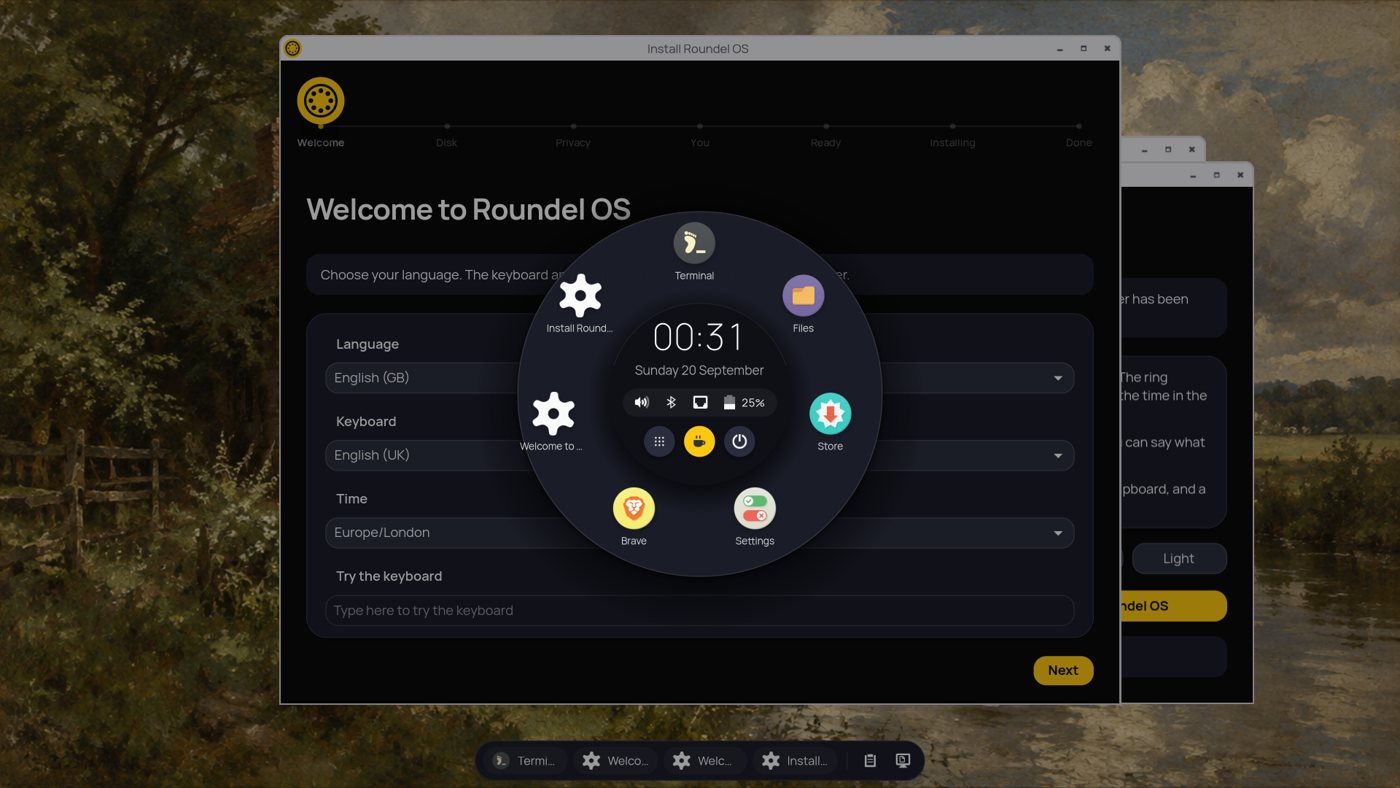
What the Roundel Installer asks
Four questions, then a summary written in sentences. The mark rolls one stop along its line for each step, so you can always see where you are and how much is left. Back works the whole way, and nothing is written until you press Install.
Language
Choose it once and the keyboard and the time follow it, each still changeable. There is a box to type in so you can check the keyboard is really the one you meant before you rely on it for a password.
The disk
Use the whole disk, replacing everything on it. Or keep what is there, Windows or another Linux, and share the disk: a slider chooses how much room each side gets, and it says in plain words how much is left for what is there now and how much goes to Roundel OS.
Whether to lock the disk
A password you type before anything else appears, or this computer's TPM chip, which opens the disk itself so nothing is typed at start-up. Or leave it unlocked. The password is asked for twice and there is a button that suggests a passphrase.
You
Your name, the name you sign in with, a name for the computer, and your password twice. Then a Ready page that says the whole plan back to you in sentences, and nothing has been changed yet.
Dual boot
If there is a Windows or Linux partition with room in it, the installer offers to keep it and share the disk. It makes that partition smaller, leaving a margin of free space inside it, and puts Roundel in the space that opens up. It shares the boot partition that is already there; a disk with no boot partition to share cannot take Roundel beside what is on it, and the installer says so rather than guessing.
Afterwards both systems are in the boot menu, and the computer starts whichever you choose.
The other way in: on top of a Debian you already have
If you already have a minimal Debian stable with a user who can use sudo, Roundel OS can be added to it. This is how it is developed, and it is the way to try it in a virtual machine without writing a stick.
The script downloads the prebuilt program for your machine, amd64 or arm64, from the newest GitHub release and checks its SHA-256 sum before using it. ROUNDEL_BUILD=yes ./install.sh builds it here instead and takes the build tools off again afterwards. It shows you the same use-at-your-own-risk words and waits for you to type yes.
Then restart. To update later, git pull in the same folder and run ./install.sh again.
Three commands
sudo apt install git
git clone https://github.com/lightmorphic/roundel.git
cd roundel
./install.shThe first ten minutes afterwards
What to do once you are logged in and looking at the desktop and nothing else.
Pick some apps
The welcome screen offers a page of common apps from Flathub. Tick what you want and press Install. There is no browser until you choose one.
Join the Wi-Fi
Open the ring, click the network icon in the middle, switch Wi-Fi on, find your network and press Connect.
Set the screen size
Settings, Display, Size. If a change looks wrong, do nothing and it puts itself back after fifteen seconds.
Switch locking on
Settings, Power. Locking is off to begin with; switching it on asks you to choose a four-digit PIN for the first while after locking.